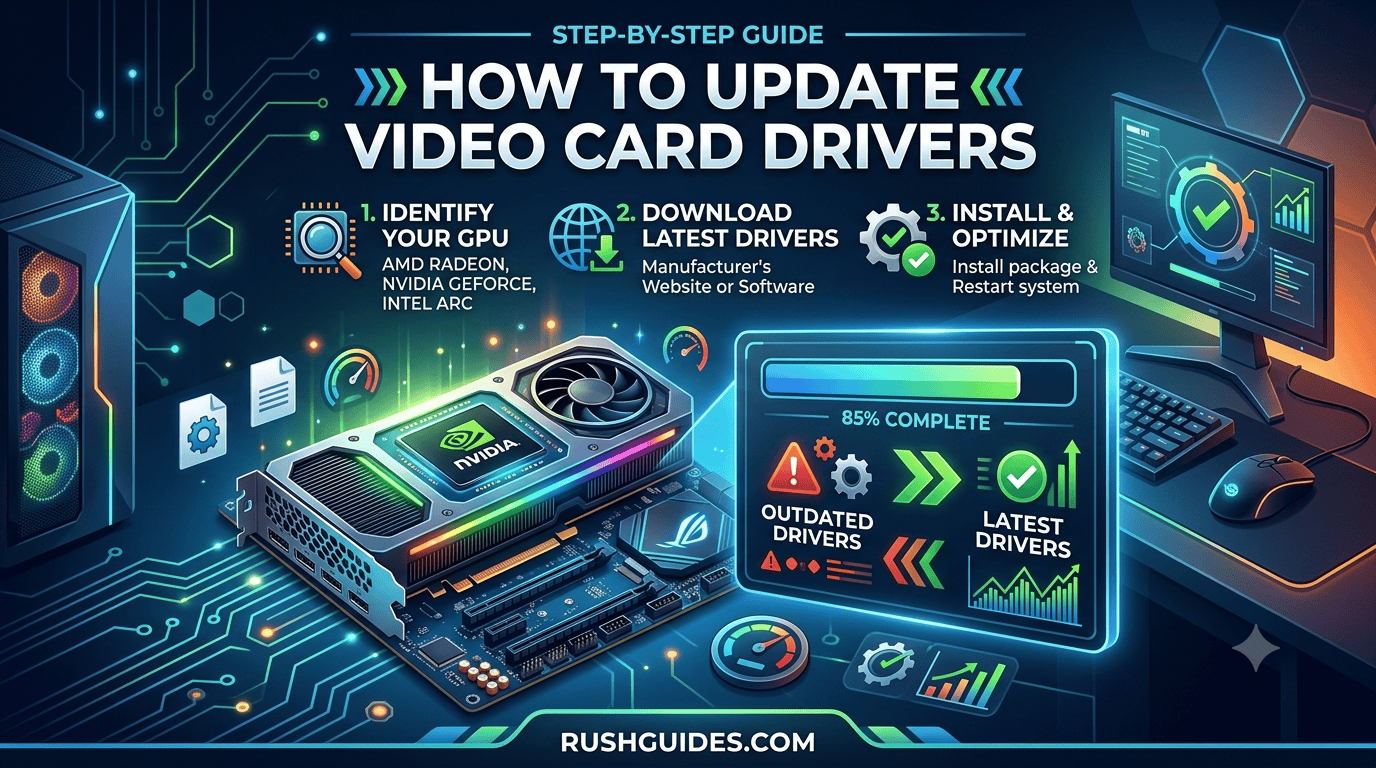
Your games are stuttering. Your screen flickered during a Zoom call. Or you just bought a new title and it won’t even launch. Nine times out of ten, the fix is the same boring, reliable answer: update your GPU driver.
Knowing how to update video card drivers is one of those skills every PC owner should have, whether you’re rocking an NVIDIA GeForce RTX 5080, an AMD Radeon RX 9070, or the Intel Arc card built into your laptop. It takes ten minutes, it’s free, and it fixes more problems than people realize. This guide walks you through every method, from the one click automatic route to a full clean wipe with Display Driver Uninstaller when things get messy.
What a Graphics Driver Actually Does
A graphics driver is the software that lets Windows talk to your GPU. Without it, your operating system has no idea how to use the hardware sitting in your PC. It controls how images get rendered, how videos decode, how games display, and how your monitor gets handled when you plug in a second screen or a VR headset.
When the driver is outdated or corrupted, you’ll usually notice one of these:
- Stuttering or low frame rates in games you used to run fine
- Screen flickering or a black screen after waking from sleep
- Crashes in graphics heavy apps like Premiere or Blender
- Missing resolution options or refresh rate settings
- A new game refusing to launch or throwing errors
How to Check Your Current GPU and Driver Version
Before you download anything, confirm what card you actually have and what driver version is currently installed. This matters because installing the wrong package can cause more problems than it solves.
The fastest built in method: press Windows key plus R, type dxdiag, and hit Enter. Click the Display tab and you’ll see your GPU name, manufacturer, and current driver version listed right there.
You can also right click the Start button, open Device Manager, and expand Display adapters. Your card will be listed by name, whether that’s a GeForce RTX series, a Radeon RX series, or an Intel Arc or Iris chip.
On Windows 11 specifically, you can also go to Settings, then System, then Display, then Advanced display, and look under Display information for the GPU name tied to your monitor. This is handy on laptops with both an integrated Intel chip and a dedicated NVIDIA or AMD card, since it tells you which one is actually driving your screen.
Method 1: Update Through the Manufacturer’s App (Easiest)
This is the method most people should use for a routine update, and it works whether you’re on an NVIDIA, AMD, or Intel system.
NVIDIA
GeForce Experience is gone. NVIDIA retired it and folded everything into the NVIDIA App, which now handles driver updates, in-game overlays, performance monitoring, and GPU overclocking in one place.
- Download the NVIDIA App from nvidia.com/software/nvidia-app if you don’t already have it.
- Open it and go to the Drivers tab.
- Click Check for Updates.
- If one’s available, hit Download, then Install.
If you’d rather grab it manually, head to nvidia.com/drivers, pick your exact GPU model and operating system, and download the installer directly.
AMD
- Open AMD Software: Adrenalin Edition. Right click your desktop and you should see it in the menu, or search for it in the Start menu.
- Click the gear icon for Settings.
- Under the System section, click Check for Updates.
- If there’s a new driver, click Download, then Install.
For a manual download, go to amd.com/en/support, use the product selector to find your exact Radeon card, and grab the package from there.
Worth knowing: current Adrenalin drivers include full support for FidelityFX Super Resolution 4, AMD’s machine learning upscaling tech for RDNA 4 cards like the RX 9070 series, which goes head to head with NVIDIA’s DLSS 4.
Intel
- Download the Intel Driver & Support Assistant from Intel’s support site if you don’t have it installed.
- Run it. It automatically scans your system and lists any available driver updates.
- Click Download All, then Install All, and follow the prompts.
Intel’s Arc driver cadence has gotten a lot more consistent, with monthly updates and noticeably better game compatibility compared to the early days of Arc.
Method 2: Update Through Windows Update
This is the simplest option and works across all three brands, though it’s usually slower to receive the newest driver than going direct to the manufacturer.
- Open Settings (Windows key plus I).
- Go to Windows Update.
- Click Check for updates, then look under Optional updates or Advanced options for a Driver updates section.
- Select any available graphics driver and click Download and Install.
This route is best for integrated graphics, older cards, business laptops, or anyone who just wants a stable driver without installing extra software.
Method 3: Update Through Device Manager
Device Manager works on both Windows 10 and 11 and lets Windows search for a compatible driver without you installing a separate NVIDIA, AMD, or Intel app.
- Right click the Start button and select Device Manager.
- Expand Display adapters.
- Right click your GPU and choose the Update driver.
- Select Search automatically for drivers.
- Windows will install anything it finds. Restart if prompted.
This method tends to pull from Microsoft’s driver catalog rather than the manufacturer’s latest release, so it’s not always the newest version available, but it’s reliable for a basic fix.
Method 4: Manual Download From the Manufacturer Site
If you know exactly which card and driver version you need, or you’re troubleshooting a system where the automatic tools keep failing, going straight to the source works every time.
| Brand | Where to go |
| NVIDIA | nvidia.com/drivers |
| AMD | amd.com/en/support |
| Intel | intel.com/download-center (select Graphics) |
Select your exact GPU model and operating system, download the installer, run it as administrator, and follow the prompts.
When You Need a Full Clean Install With DDU
A regular update through the manufacturer’s app is fine for routine maintenance. But if you’re switching GPU brands (say, going from AMD to NVIDIA), dealing with persistent crashes that started after an update, or your display is acting genuinely broken, a standard reinstall often isn’t enough. Leftover files, registry entries, and services from the old driver can stick around and cause conflicts.
That’s where Display Driver Uninstaller, known as DDU, comes in. It’s a free tool built by Wagnard and distributed through wagnardsoft.com and Guru3D, and it’s become the go to option in the PC building community for a genuinely clean slate. Only download it from those two official sources, since third party “driver updater” sites have been known to bundle it with adware.
Here’s the basic process:
- Download and install the new driver you want first, but don’t run the installer yet.
- Download DDU and extract it, ideally to your desktop. It’s portable, no installation required.
- Boot into Safe Mode.
- Launch DDU as administrator, select your GPU manufacturer, and click Clean and Restart.
- Once your PC reboots into normal Windows, run the new driver installer you downloaded in step one.
A couple of things trip people up here. First, if you have BitLocker encryption enabled, entering Safe Mode can trigger a recovery key prompt, so have that 48 digit key ready before you start. Second, disconnect from the internet before rebooting from Safe Mode. If you don’t, Windows Update sometimes jumps in and installs a generic driver before you get the chance to run your own installer.
DDU is overkill for a routine monthly check. Save it for genuine driver corruption, brand switches, or troubleshooting that’s already ruled out overheating or a failing card.
How Often Should You Actually Update
You don’t need to chase every single driver release. A few situations are worth prioritizing:
- You’re about to play a newly released game, since NVIDIA’s Game Ready Drivers and AMD’s Adrenalin updates are frequently timed to launch alongside big titles, sometimes adding a meaningful FPS bump on supported games with zero hardware changes
- You just upgraded to a new version of Windows
- You’re seeing flickering, crashes, or visual artifacts right now
- You added new hardware like a 4K monitor, an ultrawide, or a capture card
Outside of that, checking once a month is a reasonable habit. If your system is stable and your games run fine, there’s no urgency to update the moment a new version drops. New releases occasionally introduce their own bugs, which is exactly why Windows keeps rollback options available.
Troubleshooting Common Update Problems
Installer fails or freezes. Restart your PC and try again with the manufacturer app closed in the background. If it keeps failing, run a DDU clean install instead.
Black screen after updating. Wait sixty seconds, since the screen often comes back once the driver finishes loading. If it doesn’t, boot into Safe Mode and roll back the driver through Device Manager, or run DDU and reinstall.
Performance actually got worse. This happens occasionally with a specific driver version. Roll back through Device Manager (right click the GPU, Properties, Driver tab, Roll Back Driver) or manually install the previous stable version from the manufacturer’s archive.
Windows keeps reinstalling an old driver automatically. This is a known issue when Windows Update reasserts itself. Disconnect from the internet during a DDU clean install to prevent it from interfering.
Frequently Asked Questions
Does updating my GPU driver delete my games or settings? No. Driver updates only touch the graphics driver software itself. Your games, files, and in game settings are completely unaffected.
What happens if I install the wrong driver? Windows usually rejects an incompatible driver outright, or your display may malfunction. If that happens, boot into Safe Mode, remove it with DDU, and install the correct one for your exact card and OS.
Is the process different on Windows 10 versus Windows 11? Not really. The NVIDIA App, AMD Adrenalin, and Intel Driver & Support Assistant all work identically on both versions.
Can I update Intel integrated graphics the same way? Yes. Download the Intel Driver & Support Assistant and it will automatically detect your integrated GPU and install the latest compatible version.
Do I need DDU every time I update? No. DDU is for clean installs, brand switches, and troubleshooting. A normal update through the manufacturer’s app is all you need most of the time.
Updating your video card driver isn’t glamorous, but it’s one of the highest value five minute tasks you can do for your PC. Grab the right app for your brand, check for updates monthly, and keep DDU in your back pocket for the rare occasion things get genuinely messy.
Read More About: How to Speed Up a MacBook