If you work at JCPenney or recently left, the associate kiosk is the one tool that handles almost everything you’d normally have to bother HR about. Schedules, pay stubs, W-2 forms, benefits enrollment, direct deposit settings — it’s all sitting behind one login at jcpassociates.com. This guide walks you through exactly how to get in, what you can do once you’re there, and how to fix it when something goes wrong.
What Is the JCPenney Associate Kiosk?
The JCPenney associate kiosk is an employee self-service portal where current and former staff can access pay stubs, W-2 forms, shift schedules, benefits enrollment, direct deposit settings, and leave balances. Whether you work on the sales floor, in a stockroom, or as a part-time seasonal hire, this portal is your direct line to your own employment records without waiting on anyone else.
The system is built for roughly 50,000 associates across 660+ U.S. stores and runs on a secure web interface that works on desktops, tablets, and phones. There’s no standalone app, but any mobile browser gets the job done.
How to Log Into the Associate Kiosk JCP Portal
You have two ways to access it.
Option 1: In-Store Terminal Physical kiosks are typically found in employee break rooms or back offices within JCPenney stores, usually near time clocks or employee bulletin boards. Touch the screen, enter your credentials, and you’re in.
Option 2: Associate Kiosk @ Home (Remote Access)
This is the one most people use. Go to jcpassociates.com, click “Associate Kiosk @ Home” under Active Associates, enter your nine-digit Employee ID and password, then click Log In to reach your dashboard.
The default password format is JCP followed by your birth month (2 digits), birth year (2 digits), and the last four digits of your Social Security number. You’ll be prompted to change this after your first login, which you should do right away.
First-Time Registration
To register, launch the official portal, choose “Associate Kiosk @ Home,” and you’ll be moved to the registration page where you enter your personal details and set a password. Note that first-time registration must be completed on a JCPenney workplace computer — the “New User” registration link is disabled on personal devices and home networks.
What You Can Do Inside the Portal
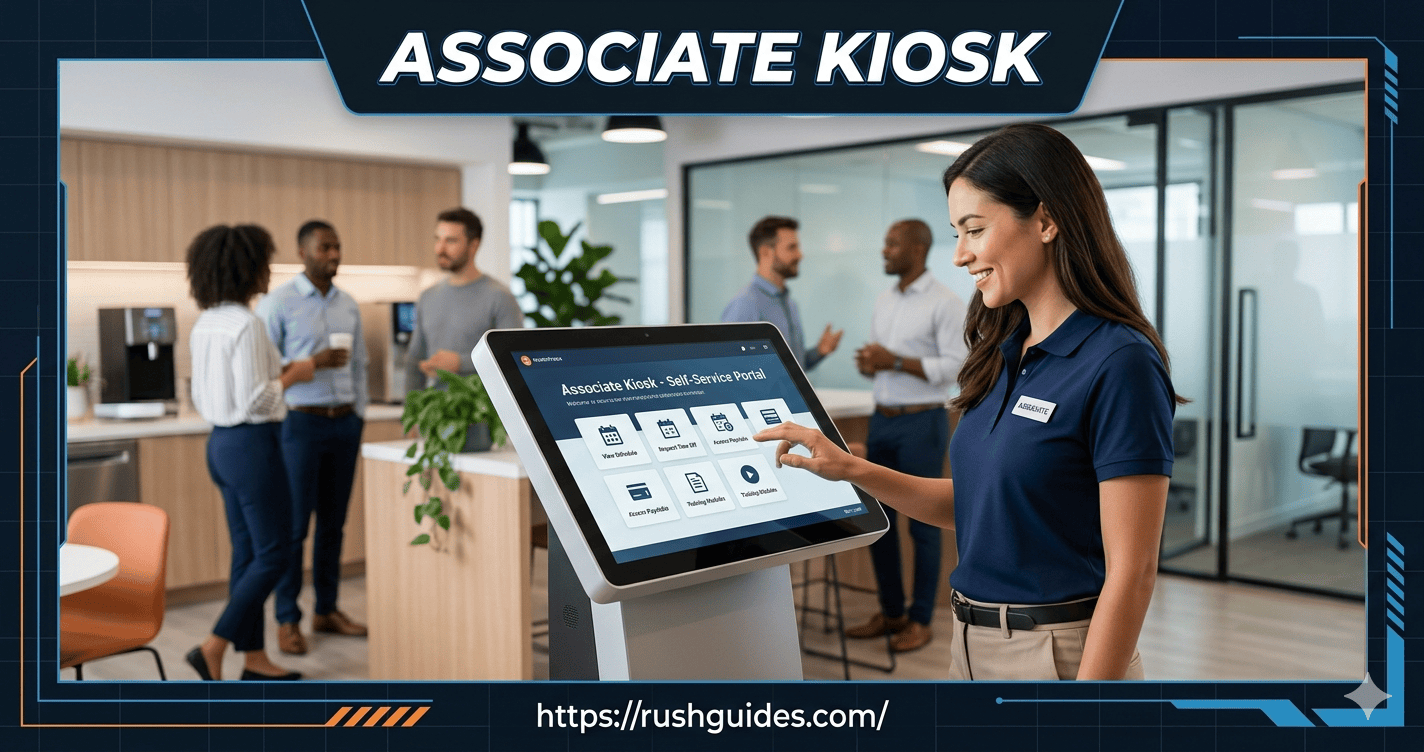
After logging in, the dashboard shows five clearly labeled sections: My Schedule, My Pay, My Benefits, Personal Details, and Time Off Requests. Each loads independently, so you’re never buried in submenus.
Schedules and Time Off
Shift visibility is the most-used function. Associates log in and see upcoming shifts without tracking down a printed calendar or messaging a manager. The schedule updates in real time, so a swap approved on Monday shows up immediately. Submitting time-off requests through the portal — rather than verbally to a manager — also gives you a record of the request.
Pay Stubs and Direct Deposit
One of the most frequently used features is the ability to view and download pay stubs in PDF format. Employees can track their earnings, review deductions, and monitor direct deposit activity without waiting for paper statements or contacting payroll.
To print your pay stub, go to My Money > My Paychecks and click the print icon in the top right corner. You can also update your direct deposit banking details from this same section.
W-2 Forms and Tax Documents
During tax season, W-2 forms are available for download, which saves a trip to HR or a phone call to payroll. Your W-2 can be printed from My Money > Tax Forms — select the year and click print.
Benefits Enrollment
Navigate to the “Benefits Center” section on the dashboard to browse available health, dental, vision, and retirement plans. Select the plans that suit your needs and complete the enrollment process.
Updates can typically be made during the annual open enrollment period or after qualifying life events such as marriage or the birth of a child. Don’t wait until the last day of open enrollment to compare options — log in early and read each plan’s details carefully.
Training and Company Resources
The portal also lets associates complete mandatory training modules on topics like workplace safety, customer service, and company policies, and access a library of learning resources including videos, articles, and interactive tutorials. Training certificates can be printed by going to My Training and clicking Print Certificate below any completed course.
Personal Information
Associates can modify contact details, emergency contacts, and other relevant personal data directly through the portal. Keeping this current matters more than most people think — outdated contact info can delay payroll communications or benefits correspondence.
Former Associate Kiosk JCP Access
If you’ve left JCPenney, your access doesn’t disappear immediately. Former associates retain kiosk access for up to 18 months after their last working day. The main reason to log in after leaving is to download W-2 forms for tax filing. Go to jcpassociates.com and select “Former Associate Kiosk” from the navigation.
If your credentials expired before the 18-month window closed, contact JCPenney Payroll directly to restore access. This 18-month window is more generous than most competitors offer.
Troubleshooting Common Login Problems
Even a straightforward portal can cause headaches. Here’s what to do when it does.
Forgot Your Password
Visit jcpassociates.com and click “Kiosk @ Home Password Reset.” Enter your 9-digit Employee ID and complete the security questions. If those aren’t configured, call 1-800-870-1111.
Account Locked
Too many failed login attempts will temporarily lock your account. Wait 30 minutes before trying again, or call the JCPenney HR support line at 1-888-890-8900.
Browser Issues
Clear your browser’s cache or try accessing the portal using Internet Explorer or Microsoft Edge, which tend to be most compatible with the system.
Site Not Loading
Check that you’re typing the correct URL: jcpassociates.com. Phishing sites that mimic the portal do exist. The URL should always begin with “https://” to confirm a secure connection.
Security Tips for Using the Associate Kiosk @ JCP Home
The portal holds genuinely sensitive data — payroll figures, banking details, tax records, and parts of your personal identity. Treat it accordingly.
Log in over a personal or trusted network and avoid public Wi-Fi. Sign out completely after each session, especially on shared terminals. Change your password every few months and avoid reusing old ones. Never share your Employee ID or login credentials with coworkers.
Phishing attempts targeting retail workers are real. Be cautious of emails claiming to be from JCPenney that ask for login details — always verify the sender’s address and avoid clicking suspicious links. The actual portal link is jcpassociates.com. Anything that looks slightly different is a red flag.
Tips for Getting the Most Out of the Portal
A few habits make the kiosk genuinely useful rather than just something you check once a month:
- Check your schedule every Monday — shifts can be updated mid-week and you don’t want to miss a change
- Submit time-off requests at least seven days in advance, since last-minute requests are more likely to be denied
- Download each pay stub after every pay cycle to maintain personal records
- During open enrollment, log in early and compare benefits options rather than defaulting to last year’s plan
- Update your personal contact details any time your phone number, email, or address changes
Frequently Asked Questions
What is the associate kiosk JCP portal?
It’s a self-service web portal where JCPenney associates check schedules, view pay stubs, download W-2 forms, request time off, and enroll in benefits.
Where do I log in for the associate kiosk @ JCP home?
The URL is jcpassociates.com. Click “Associate Kiosk @ Home” under the Active Associates section and enter your Employee ID and password.
Does JCPenney have a kiosk app?
JCPenney does not have a dedicated app for the kiosk portal. Associates access everything through a mobile browser.
Can former employees use the associate JCP kiosk?
Yes. Former associates can access the portal for up to 18 months after their separation date to retrieve W-2 forms and pay records.
What’s the JCPenney IT support number for kiosk issues?
Call 1-800-870-1111 for IT support. For HR-related login issues, the HR support line is 1-888-890-8900.
What is the default password format for first-time login?
The default format is JCP followed by your birth month (2 digits), birth year (2 digits), and the last four digits of your SSN. Change it immediately after your first login.
The associate kiosk is one of those tools that becomes genuinely useful once you know it properly. Most JCPenney employees only use it to check their schedule — but it can handle almost every routine HR task you’d otherwise need to track down a manager or wait on hold for. Bookmark jcpassociates.com, set up your security questions, and download your pay stubs regularly. Past that, the portal mostly runs itself.