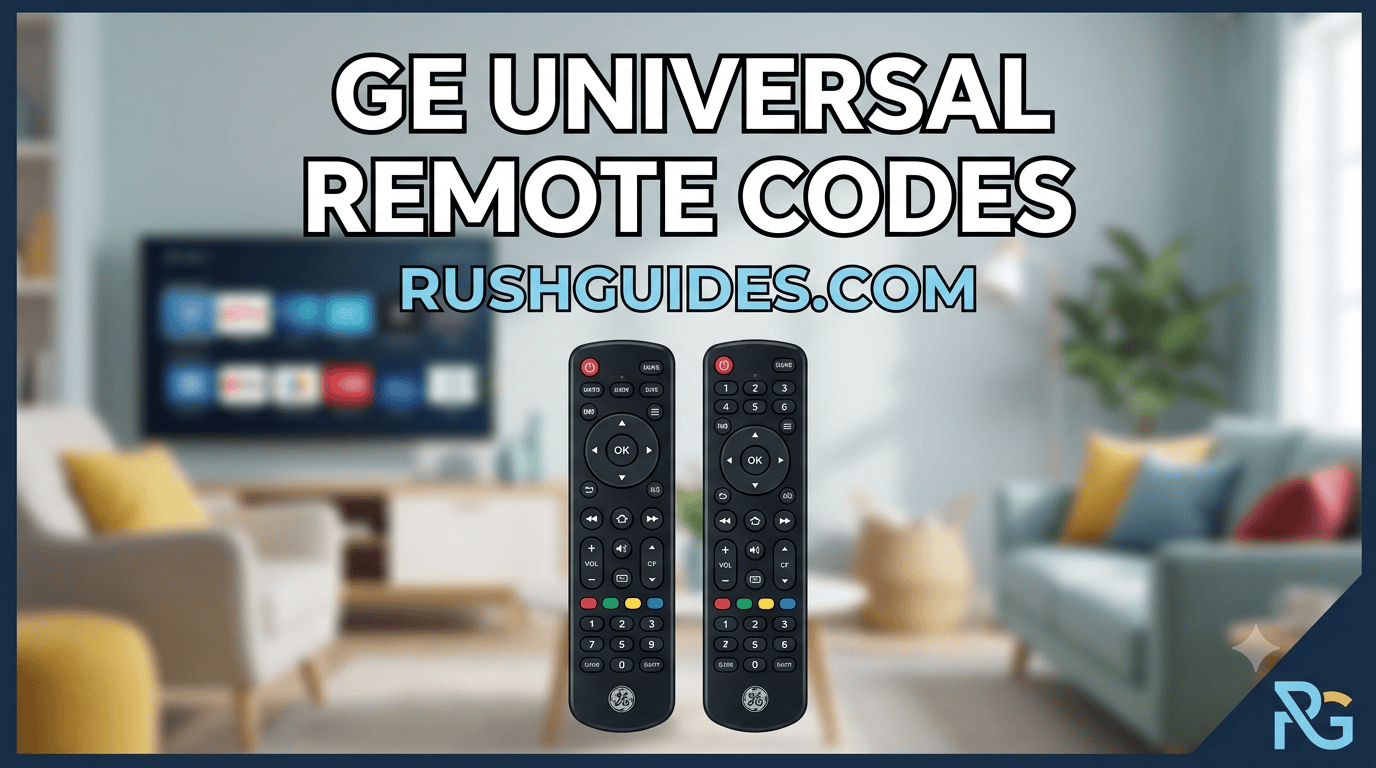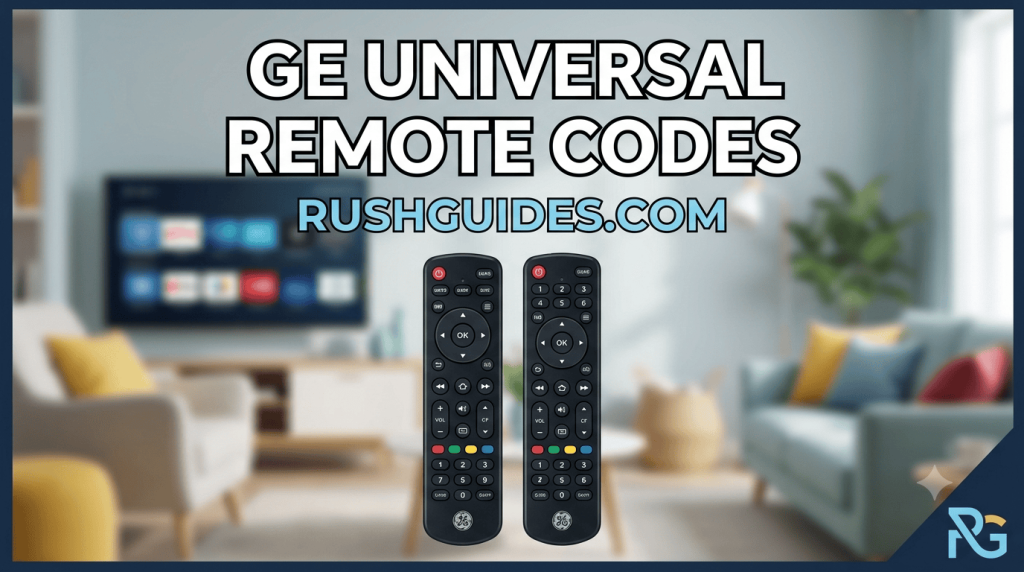
You just bought a GE universal remote, ripped open the packaging, and popped in the batteries. Now you’re staring at it, trying to figure out how to make it actually control your TV. Maybe you lost the original remote, the dog ate it, or you’re just tired of juggling four different remotes for your TV, soundbar, and streaming device.
The good news is GE universal remotes are some of the easiest to program. They’re made by a company called Jasco under a licensing deal with GE, and they’ve been around long enough that there’s a mountain of codes available to get just about any device working.
The tricky part is that GE has released dozens of remote models over the years, and they don’t all use the same code system. Some take 3-digit codes, most take 4-digit codes, and the codes that work depend on when your specific remote was manufactured. This guide gives you the complete picture of the codes, the programming methods, and the workarounds when nothing seems to work.
First, Check Your Remote’s Version
Before you start entering random codes, look under the battery compartment of your remote. You’ll see a sticker with a model number and a version code .
Here’s what to look for:
- CL3 – Manufactured after 2013
- CL4 – Manufactured after 2016
- CL5 – Manufactured after 2019
- CL6 – Manufactured after 2022
- V1 through V5 – Older remotes from 2006 to 2013
This matters because a code that works on a CL6 remote might not work on a CL3. Different versions have different code libraries built in . If you know your version, you can skip codes that your remote doesn’t support and save yourself the headache.
How to Program Your GE Universal Remote
You have two ways to set up your GE remote: direct code entry or auto code search.
Direct Code Entry (The Faster Way)
This is the preferred method when you know your device’s code. Here’s the step-by-step :
- Turn on the device you want to control (your TV, for example).
- Press and hold the Setup button on your GE remote until the red indicator light turns on and stays lit.
- Press the device button for what you’re programming: TV, CBL (cable box), DVD, or AUX (for soundbars or other devices). The red light will blink once.
- Enter the 4-digit code for your device brand using the number pad. The red light should turn off if the code is accepted.
- Point the remote at your device and test the power button, volume, and input controls.
If it doesn’t work, repeat the process with the next code on the list for your brand.
Auto Code Search (When You Don’t Have the Code)
No code list? No problem. The auto search method cycles through all the codes stored in your remote until it finds one that works .
- Turn on the device you want to control.
- Press and hold Setup until the red indicator light stays on.
- Press the device button (TV, CBL, DVD, or AUX). The red light blinks once.
- Aim the remote at your device and press the Power button. The remote sends 10 codes at a time, and the red light blinks with each set.
- If your device turns off, you’ve found a working code set. Turn the device back on.
- Now press the VOL + button. If the device turns off, press the device button you selected earlier to save the code. If it stays on, keep pressing VOL + until it turns off, then save the code by pressing the device button.
This method can take a few minutes, but it works when you’re completely in the dark about which code to use.
GE Universal Remote TV Codes
Here are the most common GE codes for major TV brands. Keep in mind these are general lists; your specific remote version may not support every code.
Samsung TV Codes
| Remote Version | Codes |
| CL3, CL4, CL5, CL6 | 006, 010, 012, 017, 091, 2017, 2019, 2025, 2049, 2051, 2741, 2751, 2781, 2791 |
LG TV Codes
| Remote Version | Codes |
| CL3 | 0001, 0131, 0251, 0611, 0761, 0931, 1181, 1221, 1471, 1501, 1911, 3001, 3021, 3091, 3221, 3281, 3311, 3811, 4731, 5271, 5501, 5511 |
| CL4, CL5 | 0001, 1181, 1221, 1911, 3001, 5511, 6021 |
| General | 005, 016, 100, 120, 164 |
Vizio TV Codes
| Remote Version | Codes |
| CL3 | 5561, 5571, 5581, 5591, 5601, 5611, 5621, 5631, 5641, 5651, 5661, 5671, 5681, 5691, 5701, 5711, 2901, 1471, 1741, 2021, 3651, 3741, 3851, 4081 |
| CL4 | 5631, 5561, 6121, 6131, 5611, 6111, 5651, 5621, 5711 |
| CL5 | 5631, 5611, 5561, 6471, 6511, 6121, 6131, 6111, 5651, 5621, 5711 |
Sony TV Codes
| Remote Version | Codes |
| General | 001, 004, 012, 015, 045 |
RCA TV Codes
| Remote Version | Codes |
| General | 0031, 0004, 0005, 0009, 0012, 0054, 0090, 1046 |
ONN TV Codes
| Remote Version | Codes |
| General | 2433, 0198, 0214, 0048, 0087, 0009, 0054 |
Panasonic TV Codes
| Remote Version | Codes |
| General | 045, 088, 094, 095, 096 |
GE Universal Remote Cable Box Codes
These codes work for programming your GE remote to control your cable or satellite box.
Comcast/Xfinity Codes
| Remote Version | Codes |
| General | 0156, 0180, 0031 |
DirecTV Codes
| Remote Version | Codes |
| General | 0018, 0050, 0026 |
Dish Network Codes
| Remote Version | Codes |
| General | 0056, 0077, 0030 |
GTD Cable Codes
| Remote Version | Codes |
| CL3, CL4, CL5, CL6 | 2503, 2513, 2523 |
Knology SAT Codes
| Remote Version | Codes |
| V3, V5, CL3, CL4, CL5, CL6 | 1284, 1344, 1424, 1564 |
| CL6 only | 1284, 1344, 1424, 1564 |
GE Universal Remote DVD and Streaming Device Codes
DVD Player Codes
| Brand | Codes |
| Sony | 0156, 0158, 0186, 0223 |
| Philips | 0806, 0810, 0833 |
| Panasonic | 058, 123, 125 |
| Toshiba | 0140, 0180, 0310 |
Digital Stream DTV Codes
| Remote Version | Codes |
| CL4, CL5, CL6 | 2214, 2704, 1194 |
Iomega Streaming/Video Accessory Codes
| Remote Version | Codes |
| V3, V5, CL3, CL4, CL5, CL6 | 0724, 1744, 1814, 2124 |
| CL3 only | 1744 |
| CL4, CL5, CL6 | 0724, 1814, 2124 |
When Your GE Remote Won’t Program
Sometimes you try every code on the list and nothing works. Here’s what to check.
Your remote’s version matters more than you think. A CL6 remote has a different code set than a CL3. If you’re using codes from a generic online list, they might not match your remote’s internal database. Check the battery compartment sticker and look up codes specific to your version.
The device might be too old or too new. Older GE remotes don’t have codes for the latest smart TVs. Conversely, a brand-new GE remote might drop support for an ancient CRT television. If you’re stuck, the auto code search method is your best backup.
Batteries matter. This sounds basic, but weak batteries can cause the remote to send signals inconsistently. Your remote might be trying to send the right code, but the device just can’t read it. Pop in fresh ones and try again.
Check the line of sight. Universal remotes use infrared (IR) signals. They need a clear path to your device’s IR receiver. If something is blocking it a soundbar, a stack of books, or even direct sunlight the signal won’t reach the device. Reposition the remote and try again.
Frequently Asked Questions
What’s the difference between CL3, CL4, CL5, and CL6 remotes?
These are version codes that tell you when your remote was manufactured. CL3 came out in 2013, CL4 in 2016, CL5 in 2019, and CL6 in 2022 . Each version has a slightly different code database, so a code that works on a newer remote might not work on an older one, and vice versa.
Why are there so many codes for the same brand?
TV manufacturers change their IR command sets over the years, sometimes multiple times. GE builds code libraries that cover different production periods. That’s why you see multiple codes for Samsung or LG one might work for a 2018 model, another for a 2024 model.
Can I use my GE remote for streaming devices like Roku or Apple TV?
Yes, but it depends on the specific remote model. Some newer GE remotes, like model 59046, are designed specifically as companion remotes for Roku and Amazon TV devices . Other models may support streaming devices through the AUX button if the device accepts IR commands.
How do I find the code for a device not listed here?
Check the code list that came in the box with your remote. If you lost it, you can often find a digital copy by searching for your remote’s model number (found under the battery compartment) plus “code list.” The Eliztech database is a reliable resource for GE remote codes by model .
What do I do if my GE remote stops working after a power outage?
Power outages usually don’t erase programmed codes, but they can temporarily scramble devices. Unplug your TV or device for 30 seconds, plug it back in, and test the remote again. If that doesn’t work, you may need to reprogram it.
What to Try Next
Start with direct code entry using the codes listed here. If the first code doesn’t work, work through the rest for your brand and remote version. If you’ve tried them all and you’re still stuck, switch to the auto code search method. It takes a few minutes but almost always finds a working code.
And remember, if you’re shopping for a replacement remote, check the model number on your current one first. That little sticker under the battery cover tells you everything you need to know about which codes will work.
Read More About: Garry Kief